•
Drizz raises $2.7M in seed funding •
•
Featured on Forbes
•
Drizz raises $2.7M in seed funding •
•
Featured on Forbes


A fintech customer shipped a "Send Money" button that rendered as dark charcoal text on a dark gray background in dark mode. Nobody caught it in QA because the manual test pass ran in light mode; nobody caught it in staging because the design review looked at Figma prototype, which was light-mode only. It reached production and stayed there for eleven days before a Reddit thread flagged it. The exact bug was one hardcoded #333 in a stylesheet design system that was never migrated to semantic tokens.
That specific class of bug hardcoded colors that never made it into theme system is one of twelve categories we consistently see in production apps that claim dark-mode support. The other eleven are just as reliable. Every category is preventable with a modest testing investment, and every category currently ships anyway because most teams treat dark mode as a design task instead of a QA discipline.
Each category has a distinct root cause, a distinct detection technique, and a distinct place in app where it hides.
Manual toggling doesn't scale past a smoke test. Automation frameworks include native commands for switching themes without touching device. Both platforms expose primitive.
iOS (XCUITest / Appium):
driver.execute_script("mobile: setAppearance", {"style": "dark"})
driver.execute_script("mobile: setAppearance", {"style": "light"})
The official XCUITest documentation on setAppearance covers underlying method. On real iOS devices, mobile: setAppearance sends OS-level UIInterfaceStyle change and fires same traitCollectionDidChange callback would be triggered from Settings → Display & Brightness.
Android (ADB or UiAutomator2):
adb shell "cmd uimode night yes"   # switch to dark
adb shell "cmd uimode night no"    # switch to light
adb shell "cmd uimode night auto"  # follow schedule
The command lands directly at UiModeManager service and triggers a configuration change. Any activity that has android:configChanges="uiMode" in manifest survives changes without recreation; anything else gets a full onCreate cycle. Both behaviors need coverage.
Wire toggle into test lifecycle so every UI test runs twice, once in light mode, once in dark. On our production customer suites, this doubling adds roughly 40% to run time but catches 100% of theme inheritance defects.
The WCAG 2.1 contrast thresholds are accessibility floor, not design ceiling. Every dark-mode implementation should meet or exceed these.
Two extra rules that apply specifically to dark mode and don't come from WCAG:
For automated contrast auditing on native mobile UI, Deque's axe DevTools mobile generates precise contrast ratio reports per screen and per element. It is a reference tool for WCAG-compliant mobile accessibility audits.
Real-time switching is most user-visible slice of dark mode QA and one that ships broken most often. The correct behavior looks like this:
Bugs at this layer:
Real-device testing catches these; emulators often don't render specific frames where flash happens. Our broader mobile visual regression coverage explains why frame-level testing on real devices matters here.
A minimum viable dark mode suite runs these ten cases across at least one iOS and one Android real device. Add device-model coverage as app matures.
Three tools cover a meaningful range for dark mode QA on mobile.
We built Drizz's vision-based matching so same test suite runs correctly across both themes without per-theme selector maintenance. A test authored against "Sign In" as a visible label finds a button whether it renders in dark charcoal or light gray, because the vision model reads rendered pixels rather than the element's fill color.
A dark-mode test in Drizz reads:
Set device appearance to dark
Launch the app
Verify the login screen matches the dark-theme baseline
Tap the Email field
Verify the placeholder "your@email.com" is visible
Five lines. The test runs same acceptance-criterion path in both themes because our authoring layer separates what app should do from what visible colors are. This is layer where selector-based tools accumulate most technical debt in a dark-mode-supporting codebase.
Four things we do that no other tool on this list does end-to-end for dark mode:
The technique underneath is what we call Vision AI mobile testing.
The reference tool for accessibility auditing on native mobile UI. Generates contrast-ratio reports per element per screen and flags WCAG violations with exact hex-value diffs. It is not a full test runner; it audits at snapshot points inside an existing framework (Appium, Espresso, or XCUITest).
The specific limit for dark-mode testing: AXE mobile audits state you present to it. It doesn't drive app, doesn't toggle themes, and doesn't verify real-time switch behavior. Pair with Appium or Drizz to reach screens; Axe reports on what it sees at each checkpoint.
Best for: teams that need documented WCAG compliance for accessibility audits, contracts, or regulated industries where a per-element contrast report is a shipping requirement.
Applitools' Visual AI can baseline both light and dark themes and diff subsequent runs against correct baseline based on a context tag. For visual regression at snapshot points, it's strongest visual-diff engine in mobile space.
The specific limit for dark-mode testing: Applitools doesn't drive app or toggle themes; it snapshots and diffs. Layered on top of Appium, maintenance load doubles: Appium suite has to handle theme toggling, and Applitools baseline library has to hold two sets of baselines per screen. Cost also scales linearly; a suite that snapshots twelve screens across both themes on three device configs bills 72 checkpoints per run.
Best for: teams already committed to Appium or WebDriver where dark-mode visual regression matters and a checkpoint-based pricing model fits sprint budget.

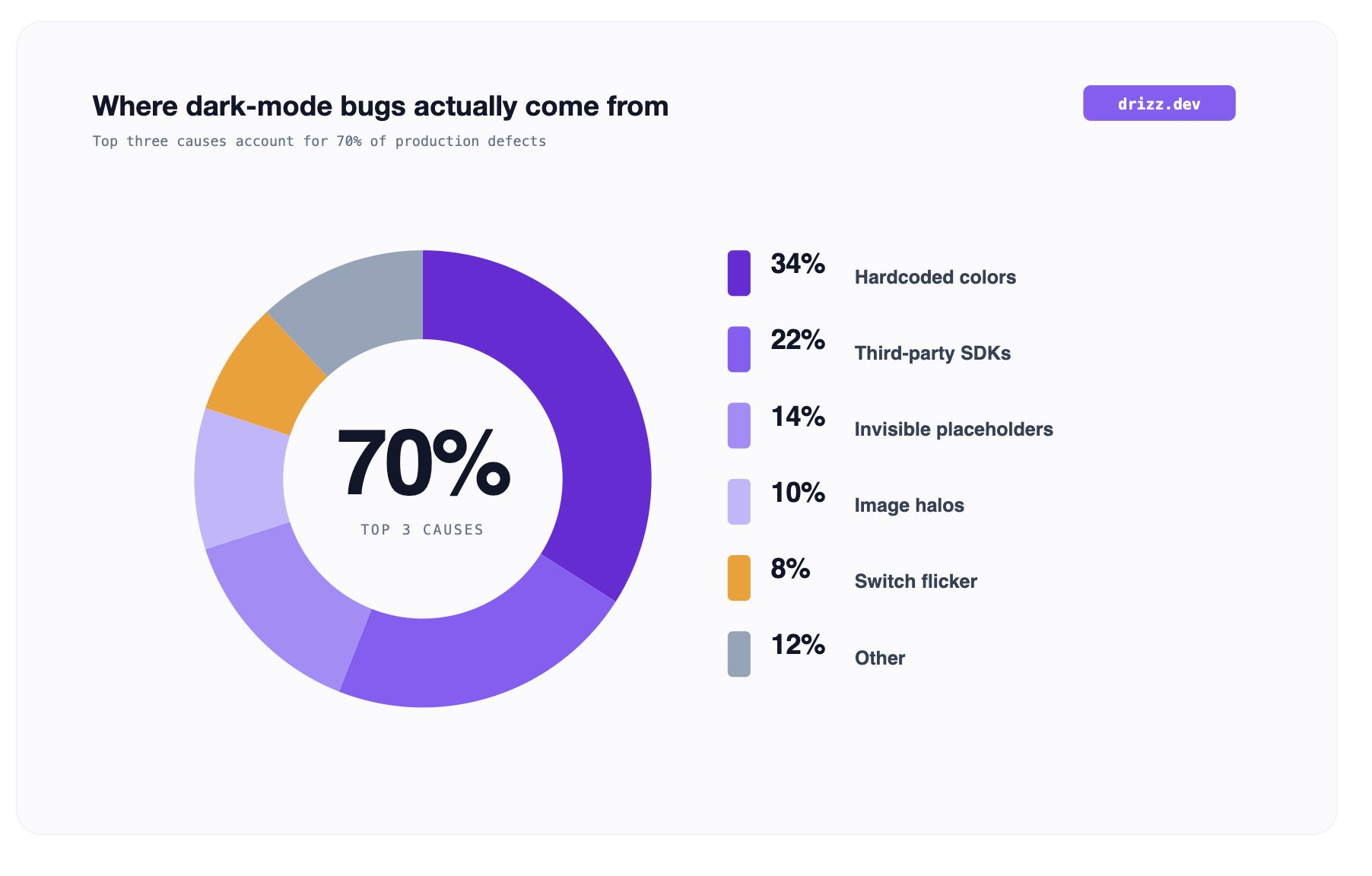
Pulled from our customer QA runs over past twelve months, ranked by frequency of defect appearing in a shipping build:
The top three categories account for 70% of dark-mode defects. A test suite that only catches those three hardcoded colors, third-party SDKs, and invisible placeholders captures most of the value. The related layout testing categories cover a wider set of visual regressions dark mode belongs to.
Every user-visible screen, yes. Not necessarily every internal debug screen. In practice, mature teams run full functional test suite twice, once in light and once in dark, and let visual assertions catch theme-specific defects. The 40% runtime overhead is worth ~15% of production defects it prevents.
Yes, if app supports schedule-based or sunset-based switching. The test triggers a schedule change via adb shell settings put secure ui_night_mode 2 on Android or via a mocked date/time on iOS. Verify app responds to a scheduled switch same as it would to a manual switch.
WCAG 2.1's contrast ratios apply to both themes equally: 4.5:1 for normal text, 3:1 for large text. WCAG does not require lower or different ratios for dark mode. The added rules (desaturating semantic colors and avoiding pure black on pure white) come from platform HIG rather than WCAG.
Partially. Emulators can render dark theme and toggle appearance, and they catch majority of contrast and color-token defects. What they miss is real-device-specific behavior: OLED-panel color shift, third-party SDK rendering on carrier-locked builds, and frame-level white-flash timing during a switch. Ship the main suite on emulators for cost efficiency; run a smaller real-device slice on iOS and Android flagships for OLED and switch-timing coverage.
For a suite already on vision-based matching (Drizz), roughly zero same test runs across both themes with a one-line appearance-setting step. For a selector-based Appium suite, plan for a full sprint of migration work: theme-toggle wiring, baseline library setup, per-theme selector overrides, and CI pipeline changes.





©Drizz 2026 • All Rights Reserved