•
Drizz raises $2.7M in seed funding •
•
Featured on Forbes
•
Drizz raises $2.7M in seed funding •
•
Featured on Forbes


Mobile accessibility testing verifies that your app works for users of assistive technology screen readers, switch control, voice control, dynamic type, and reduced-motion settings. It sits inside broader UI and functional test surface but has its own rules, its own bugs, and its own regulatory pressure.
Most teams treat accessibility as a compliance checkbox at release time. That's pattern that produces expensive bug lists two weeks before ship, and it's pattern this article is written against.
The rest of this piece covers what to test, which standards to test against on Android and iOS, and how to split automated from manual coverage so each layer catches what other misses.
Mobile accessibility testing is a category of testing that verifies an app is usable by people who rely on assistive technology or non-default settings. That includes VoiceOver on iOS, TalkBack on Android, Switch Control, Voice Control, dynamic type sizes, high-contrast modes, and reduced motion.
The reference standard is W3C's Web Content Accessibility Guidelines (WCAG), which despite "web" in name applies to mobile apps in most legal and regulatory contexts, including EU Accessibility Act, ADA (US), and AODA (Ontario).
WCAG has four categories: Perceivable (users can see or hear content), Operable (users can interact with interface), Understandable (users can predict what will happen), and Robust (assistive technology can parse app). Each mobile screen should pass criteria across all four.
Mobile accessibility testing checks app against these criteria across two paths: automated tools that catch structural issues (missing labels, low contrast, small touch targets) and manual walkthroughs that catch experiential issues (VoiceOver reading order, TalkBack focus traps, dynamic-type overflow).
Three standards define what "accessible" means on mobile. The overlap between them is where practical test suite lives.
Regulations frequently cite WCAG, but enforcement usually looks at platform guidelines. An app that passes WCAG contrast requirements but ignores VoiceOver labels will still fail an iOS accessibility audit.
The practical scope: WCAG 2.1 Level AA plus platform-specific guidelines for whichever OS you're testing. Compliance-heavy teams also verify against WCAG 2.2 (published 2023) and industry-specific frameworks fintech often references EN 301 549 in Europe or Section 508 in US.
Automated accessibility tools catch structural issues that are objectively checkable. They're fast, they run in CI, and they should be first line of defense before human testing.
Tools that run these checks on Android include Accessibility Scanner app and Espresso Accessibility Checks library. On iOS, Xcode Accessibility Inspector runs static audits on a live simulator or connected device. Cross-platform runners like axe DevTools Mobile cover both.
Automated tools catch roughly well-defined subset of accessibility issues. They miss anything experiential a screen reader reading wrong order, a focus trap in a modal, a form field that's technically labeled but label reads as gibberish out of context. Those failure modes need manual testing.
Manual accessibility testing is what verifies app actually works for people it's supposed to serve. Automated linters can't feel app way an assistive-tech user does.
Manual tests are slower and more expensive per run, which is why they belong at release-candidate stage rather than per PR. But they're only tests that catch majority of accessibility bugs that automated tools miss. Reviewers work through per-step report screenshots, timestamps, and healed-step badge to sign off.
Some accessibility bugs are blocking; others are annoyances. Prioritization affects triage speed and release decisions.
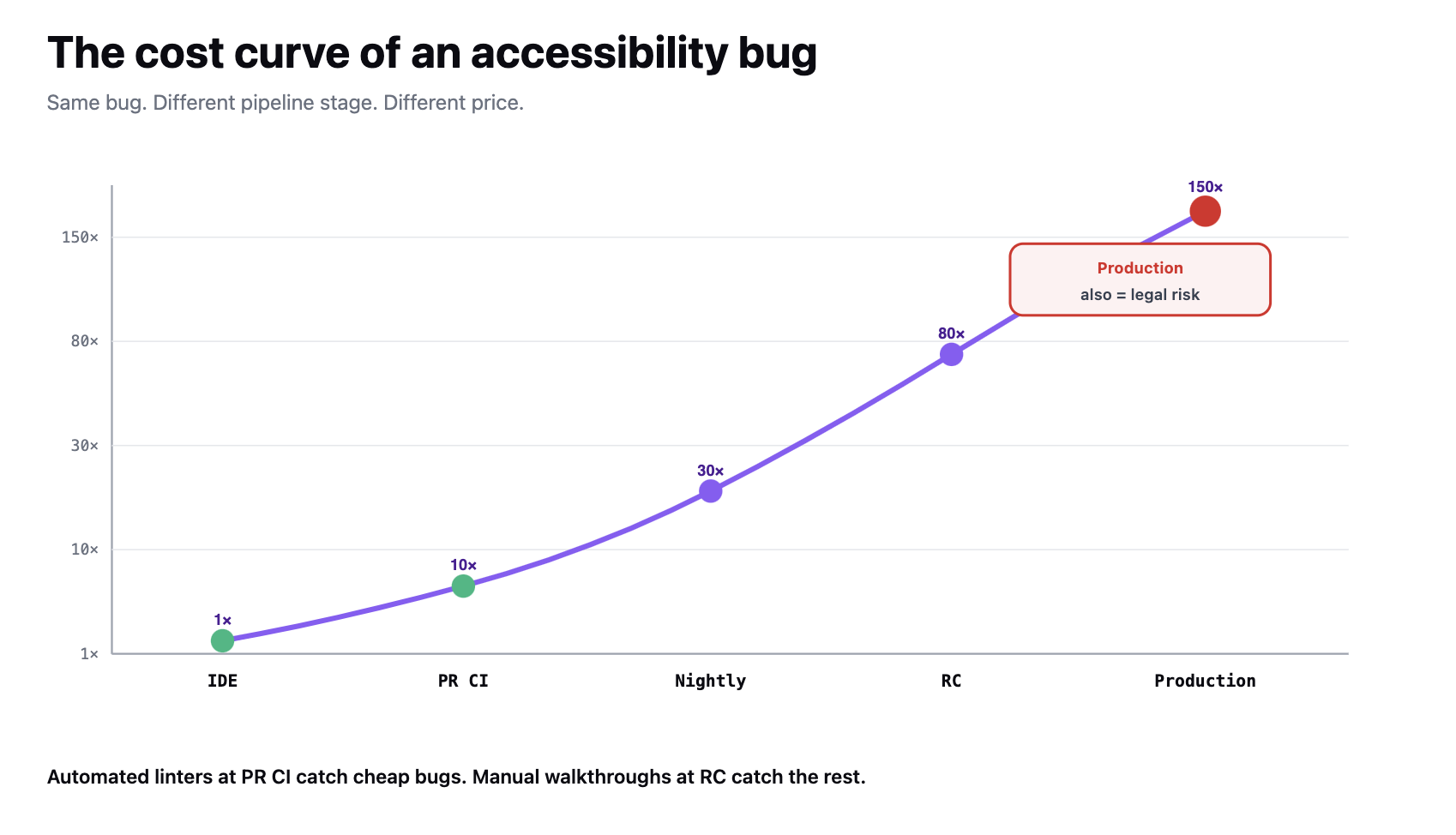
Blocking bugs are release-blockers regardless of when they're found. Non-blocking bugs go into backlog with a severity label and a target release. The testing pyramid applies here too earlier in release train you catch these, cheaper they are to fix. Drizz reports these with explicit pass / fail / passed-healed statuses so release gate is unambiguous.
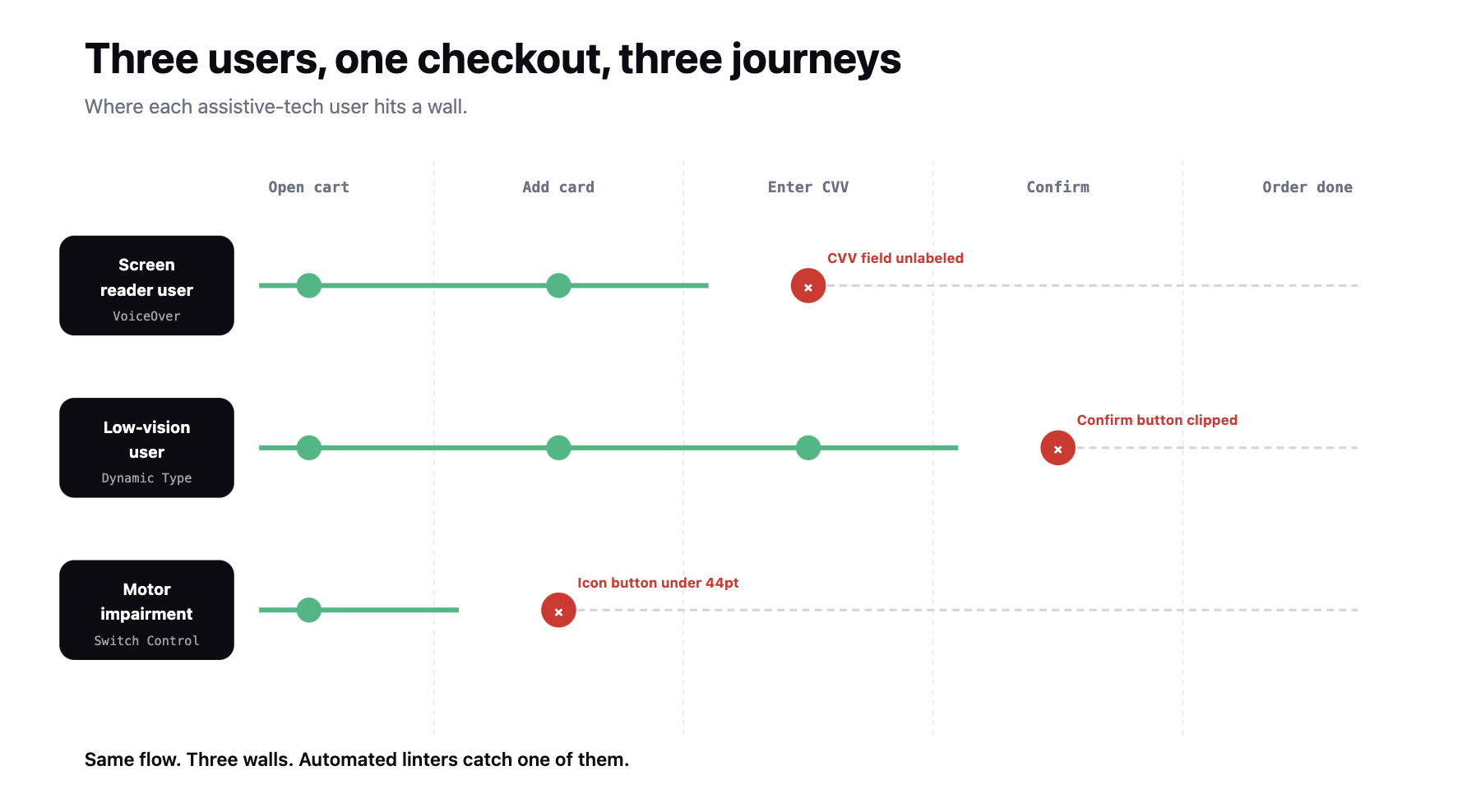
Accessibility test cases follow same four-part structure as any mobile test case, but with assistive-tech state in preconditions.
A good accessibility test case reads like a description of an assistive-tech user completing a task. It doesn't reference internal view hierarchies or accessibility identifiers directly it references user-visible experience through assistive-tech layer.
The main way accessibility test cases fail is by only covering automated subset. A test that checks contrast ratio but never fires up VoiceOver is testing a checklist, not an experience.
Accessibility testing sits at three points in pipeline, each with different depth.
Any change to a semantic hierarchy new modal, new form, new interactive control triggers an out-of-band accessibility review. Same for any theming or contrast change, and for any locale addition where text expansion could break layout at accessibility sizes.
For broader placement inside a mobile testing strategy, see device tier and release stage matrix that this fits inside accessibility runs on head-tier devices, primarily, since assistive-tech behavior tracks OS defaults more than device hardware.
Mobile accessibility testing verifies an app against WCAG 2.1 Level AA plus Apple's Human Interface Guidelines on iOS and Android's Accessibility Guidelines on Android. The scope covers screen reader announcement, keyboard and switch-control operability, touch-target sizing, contrast, dynamic type, and reduced motion.
Automated tools handle structural subset contrast, touch targets, missing labels, focus order. Manual walkthroughs handle experiential subset screen reader reading order, focus traps, dynamic-type layout, real-user completion of core flows. Both layers are required; each catches what other cannot.
Pipeline placement follows cost. Automated linters run per PR. Full automated scans run nightly. Manual accessibility passes plus real-user testing where possible run on release candidates and after semantic or theme changes.
Blocking bugs missing labels on primary actions, focus traps, contrast on CTAs are release gates. Non-blocking bugs go into backlog with severity labels.
Automated testing catches structural issues contrast ratios, touch-target sizes, missing content labels, focus order. Manual testing catches experiential issues screen reader reading order, focus traps, dynamic-type layout, real-world completion of core flows by assistive-tech users. Automated tools miss most accessibility bugs; both layers are required.
WCAG 2.1 Level AA is baseline that most legal regimes reference EU Accessibility Act, ADA in US, AODA in Ontario. Enforcement adds platform guidelines: Apple's HIG on iOS (44pt targets, VoiceOver, Dynamic Type) and Android's Accessibility Guidelines (48dp targets, TalkBack, focus order). Regulated industries also cite EN 301 549 or Section 508.
Enable screen reader in system settings VoiceOver on iOS, TalkBack on Android then complete each core flow using only screen-reader gestures (swipe to navigate, double-tap to activate). Verify reading order matches visual order, announcements are meaningful ("add to cart," not "button"), no focus traps, and state changes are announced. Run on head-tier devices at RC stage.
Missing or wrong content labels, focus traps, contrast failures on primary CTAs (below 4.5:1), and touch targets under 44×44pt on iOS or 48×48dp on Android. Each blocks assistive-tech users from completing flow and creates legal exposure in regulated markets. Non-blocking bugs focus-order mismatches, missing state announcements go into backlog with severity labels.





©Drizz 2026 • All Rights Reserved